
Digital Exam with Zoom Supervision - Example
Section outline
-
-
Tip 1: If you have trouble installing/starting Safe Exam Browser, please attach a screenshot or photo of the messages on the screen if possible.
Describe what you did and specify what type of computer you have.Tip 2: If you encounter problems with the installation and/or startup of Zoom on a mobile phone/tablet, please describe what you did.
Also specify what type of mobile phone/tablet you have. -
Follow the installation instructions that appear when you start the installation.
-
Students mustMark as done
Note!
Make sure that Safe Exam Browser is installed on your computer before you start the practice exam.
Safe Exam Browser does not allow:
- running communication programs at the same time, such as Zoom, Teams, etc.
- multiple monitors.
Start the practice exam by clicking the Start Safe Exam Browser* button (possibly also Open in the browser), and then select Take the test.
*If you receive an error message when starting Safe Exam Browser, try one of the following:
- Restart your computer.
- Reinstall Safe Exam Browser and restart your computer.
- Use another computer that supports Safe Exam Browser.

-
Students mustMark as done
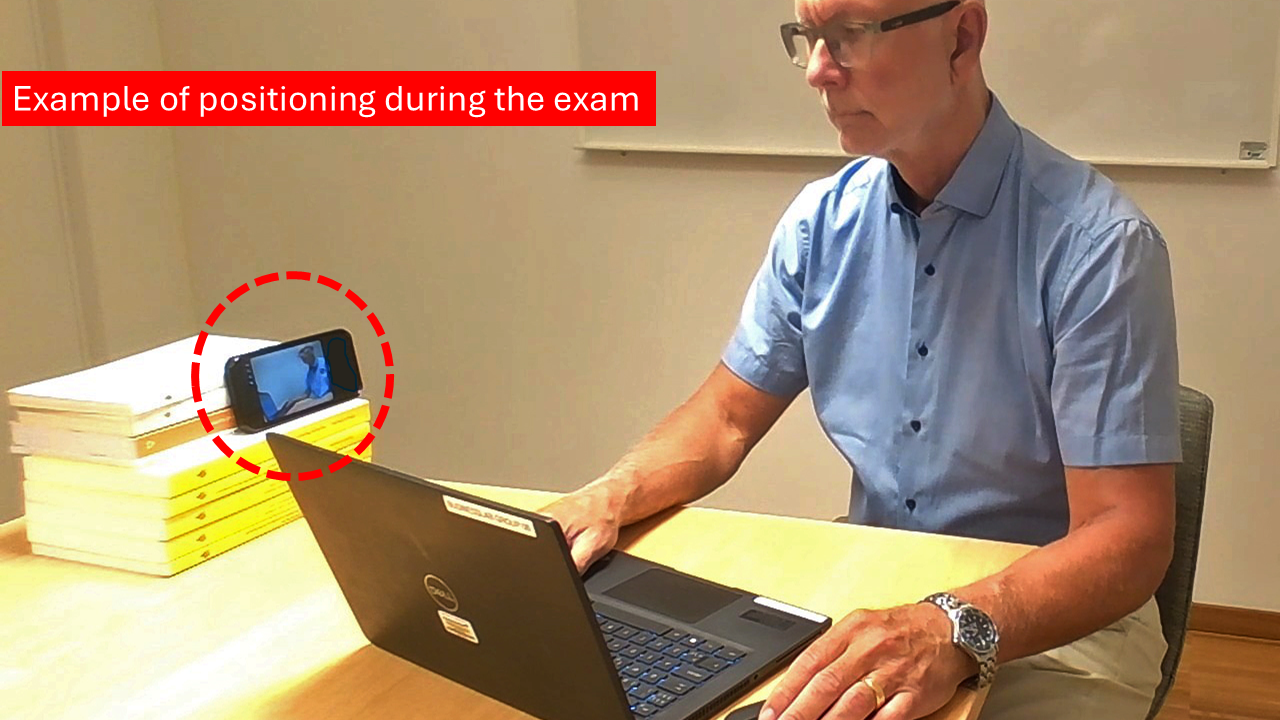
Position the mobile phone/tablet so that your face, hands and the computer screen are visible in Zoom. See the example image above.
Note! Before the start och the exam, you will also be asked to show your ID card and your computer screen to the exam supervisor before you begin the exam.
-
Tips 1: Om du har problem med att installera/starta Safe Exam Browser, bifoga gärna skärmdump eller fotobild på skärmens meddelanden.
Beskriv hur du gjorde och ange vilken sorts dator du har.Tips 2: Om du får problem med installation och/eller start av Zoom i mobiltelefon/surfplatta, beskriv gärna hur du gjorde.
Ange även vilken sorts mobiltelefon/surfplatta du har. -
Följ installationsanvisningarna som visas när du startat installationen.
-
Students mustMark as done
Att tänka på!
Se till att Safe Exam Browser är installerad på din dator innan du startar testtentamen.
Safe Exam Browser tillåter inte:
- att du samtidigt kör kommunikationsprogram så som Zoom, Teams etc.
- dubbla bildskärmar.
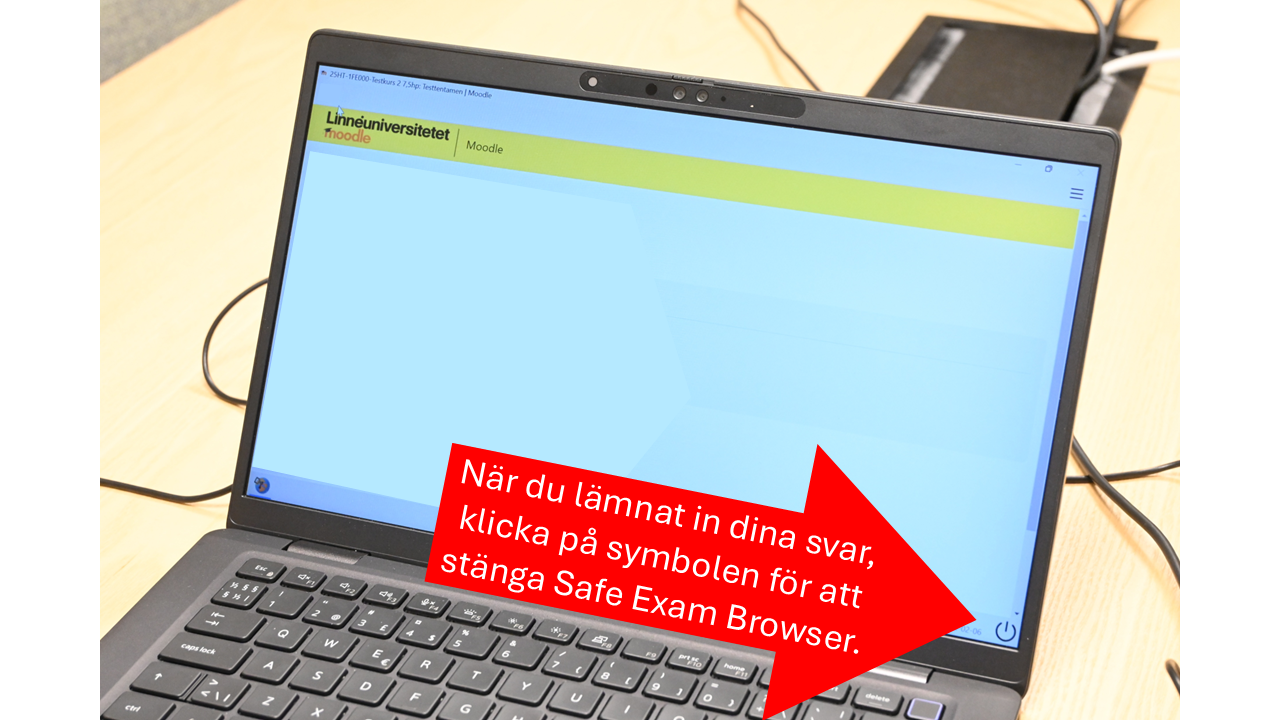
Starta Testtentamen genom att klicka på knappen Starta Safe Exam Browser*, (eventuellt även Open/Öppna i webbläsaren) och därefter Gör testet.
*Om du får felmeddelande vid start av Safe Exam Browser, prova något av följande:
- Starta om datorn.
- Installera om Safe Exam Browser och starta om datorn.
- Låna annan dator som tillåter Safe Exam Browser.
-
Students mustMark as done
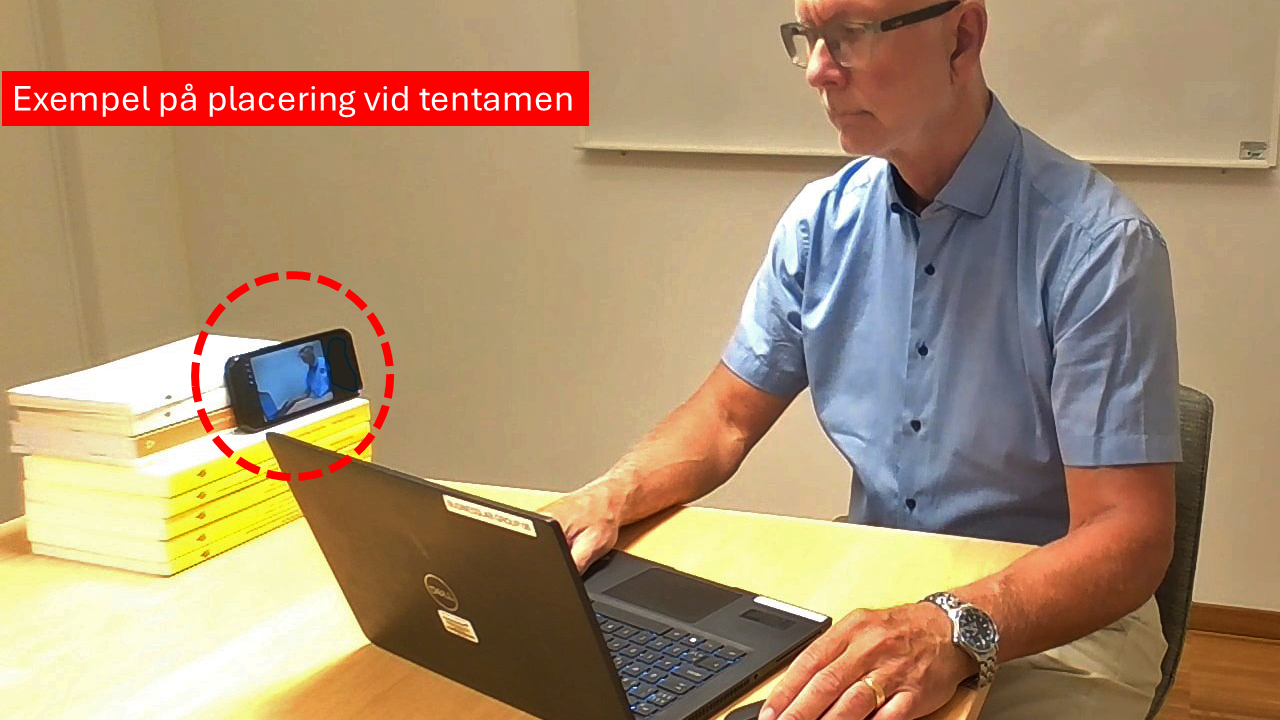
Placera mobiltelefonen/surfplattan så att ditt ansikte och händer och datorskärmen är synliga i Zoom. Se bildexempel ovan.
OBS! Vid tentamen kommer du även att få visa ID-kort och din datorskärm för tentamensvärden innan du påbörjar tentamen.